Sunday, October 9, 2011

A big thanks

Couple of days ago Killerstartups published a good article about us. Here is the link- http://www.killerstartups.com/Web-App-Tools/pixtick-com-create-and-share-screenshots. It was the kick we needed to say ‘Hello’ to the worldwide net users. People started to visit and use our application.

After Killerstartups, there are other sites like, neoteo.com, wwwwhatsnew.com, bloginormatico.com, web2null.de, visualbeta.es, listio.com, webdesignshock and many more reported about us. We started to see the uprising of of graph-spikes in our site analytics. On 6th. Sep 2011, we got 1000+ visitors first time on a single day.

We must mention our Facebook friends, who liked our page and spread the love among others. http://www.facebook.com/pages/Pixtick/136576063077841 - is the Pixtick page on Facebook. Also many thanks to our Twitter followers and people who tweeted about us.

Thanks everybody. You are the fuel, which charge us everyday. Always waiting for your feedback. Good, bad, anything.

Thursday, July 28, 2011

Color alteration issue in Mac OS X

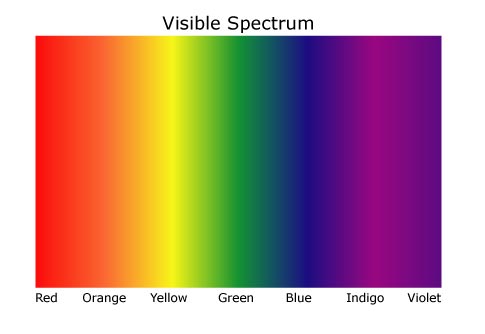
After launching, some of our user who are using Pixtick in their Mac, reported us about color alteration problem in the captured screenshot and copied images. A big thanks to those people. They are not only using it but also informing us about the flaws in the application. We have tested it again in the same manner reported by them and found the issue. For example if we copy the below image -


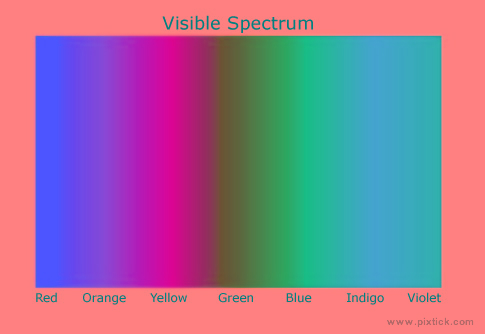
and paste it in the Pixtick. The color changed dramatically and produce the below image.


We engage ourselves day and night to make it a past tense. After a robust bug fixing phase, we found the problem is with the Java applet and the way of storing of image data in Mac clipboard. We changed some of our code, altered some portion and add some new code in applet code to solve it. And as expected, its now solved. Mac user can now capture screenshot, copy-paste images without any problem or hassle. No color issue in Mac. Go happy Pix-tick-ing...

Monday, May 16, 2011

Pixtick launched in alpha

Finally we have launched it and right now without any sought. Visit www.pixtick.com and get the experience. As it is in alpha stage, some known and unknown issues should be there. We are testing it internally and asking you to participate. Waiting for your suggestions and feedback to make it better.

Wednesday, May 11, 2011

Pixtick in action: first video


We have uploaded the first video of Pixtick in YouTube. The video shows the simplest way of capture a screenshot, then annotate it and then publish. Its easy and simple. We did not demonstrated the other features of Pixtick right now. We will come up with those stuffs very soon.

Meanwhile, you can try our app before release. Visit www.pixtick.com and get the access link.

Tuesday, April 19, 2011

FIRST LOOK: Pixtick- the online screenshot capture, annotation and publish app


Runs in almost everywhere:
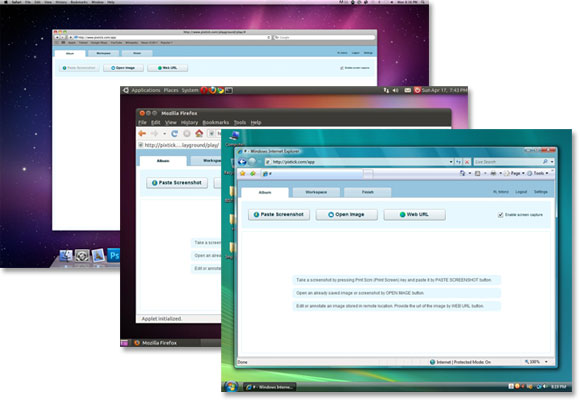
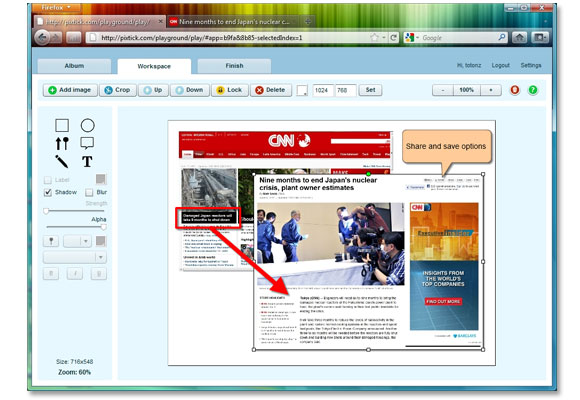
It doesn't matter what the operating system is in your desktop or laptop. Pixtick runs almost everywhere- whether it is Linux, Macintosh or Windows. You just need a internet connection. Open www.pixtick.com and start capturing, annotating and publishing. All from a browser window. No plugins or download or installation.


Edit, annotate, compose:
Pixtick not only capture screenshot, its also having a powerful annotation utility and some image editing capability. Working with single or multiple images, resizing, rotating and cropping are some of its main features. So no need to go anywhere for basic image editing.


Save, mail, upload, share, print:
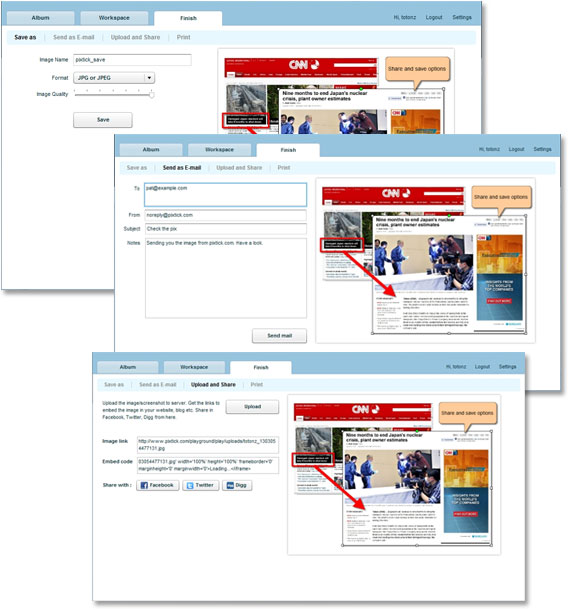
Do whatever you want with your screenshots or edited images or compositions. We have plenty of options for your publishing requirement. Save them in your hard disk as JPEG or PNG or PDF format. E-mail them directly from here. Upload them in our server and get the image link. Share them in social network sites. Sharing in Facebook, Twitter or Digg is just a one click job in pixtick.

We are giving access link to try our app before release. Visit www.pixtick.com.

Wednesday, April 6, 2011

What is screenshot? How to capture screenshot?

As we are about to launch an online screenshot capture, image edit, annotation and publishing application, lets have some info about what SCREENSHOT is.

A screenshot is basically the snap or image of the viewable portion of the display screen. It can be from a computer monitor, mobile phone display, tablet screen or even television output. In our case, it would be the snapshot of the entire monitor screen or a particular open window of an application. When you capture a screen, computer stores it in a temporary storage space in image format. By the use of some software one can retrieve it and save it as an image. Screenshot saved as an image file is used widely in tutorials, tech articles, documentation, software reviews, help files etc.

The process of taking screenshot in different OS is varies from one another. Below we are discussing some of them.


Windows:
1. To take snap of the entire screen, press the PrtScn (Print Screen) key.
2. To capture the screenshot of an active window, press Alt + PrtScn key.
3. After capture, paste it in Microsoft Paint (Programs > Accessories > Paint ) like tools to save it as a image file.

Mac:
1. To capture the entire screen use Command + Shift + 3 key.
2. For a selected area use Command + Shift + 4 key.
3. The captured screenshot saved in user’s desktop as image file.

Linux:
1. To take snap of the entire screen, press the PrtScn (Print Screen) key.
2. To capture the screenshot of an active window, press Alt + PrtScn key.
3. There are several utility software to work with the captured image. Take Screenshot, Ksnapshot, Gimp are few of them.

Unix:
Most Unix distribution nowadays comes with the ‘xwd’ tools, which is pretty much useful in taking screenshot. Here is an example of how you can take screenshot and save it in png format in command prompt-
bash-3.0$ xwd -root | convert - /tmp/screenshot.png

iPhone or iPod (iOS):
1. Press and hold the Home and Sleep button.
2. Screen will flash and capture will stored in Camera Roll on iPhone and in Saved Photos for iPod.

Hope the information will be helpful. Awaiting for comments and suggestions.

Now back to what we have developed. If someone having internet connection, he/she can just open http://www.pixtick.com and start capturing screenshot. Not only capture, one can do annotations, editing, publishing in different format, upload and share in social sites. Plenty of solutions from a single web app. No download, No installation, no plugin.

Thursday, March 17, 2011

How its started

About one year ago, on a very fine day, one of my colleague was working on a product documentation project. Me also associated in the development of the same product. He was busy writing techie notes, collecting sample codes, screenshots and related images.

Couple of hour later, for some reason, he changed his desktop and started to work in some other’s laptop. Everything was fine, but suddenly he shouted towards us- “Its ridiculous! I have to install all the required software here to take screenshot and resizing and cropping and blah blah blah... Isn't there any website where I can do the same job?”. Few people told him that a website can only take the snapshot of the web-pages, not a desktop or local machine item. Its some kind of security issue. Me and one of my friend replied almost together- “Hey! Its possible!”. I told my friend to do the job just as a experiment, as we both mostly love to do EXPERIMENT rather than BOOOOORING coding(just kidding, actually its not boring at all).

Within couple of days we developed our first prototype. It was capable of taking screenshot of almost anything- web resource as well as local desktop resources and save them in image file format. As it is running over a web-page, we succeeded in Windows and Linux both. We gave our colleague the access of it and he was happy. We were also happy.

Human nature and mind is a complex stuff to discover. And our colleague is not beyond it. Very next day he asked us- “Can you add a resizing functionality to it?”. I took the initiative as I have done the front-end part(also involved in back-end too). So, now the app can resize screenshots. One day again he asked- “Hey! Can it crop?”. Another day- “Can we add multiple screenshot and compose?”. Again, “Can i rotate images?”. Again and again...

In our spare time I started to add those features and giving him to work. Then one day I thought not to bound its use within my close people. So, I started to work on it seriously and more smart features added periodically. Now it can take screenshot, can access image from hard drive and web. One can edit them or work with multiple snaps. Its having a robust annotation tools to annotate. After edit or compose user can store them in hard drive or can send as email or can upload in our server or can publish them in Facebook, Twitter, Digg etc.

We are giving access link of a sneak peak of our app. Interested people can check http://www.pixtick.com and send us their email id. We will provide the link to use it before release. :)